
For iPhone · iOS 18+
A focused QR & barcode reader
QR point
and go.
For the code
in front of you.
Launch OneScan. Point your iPhone. Links open automatically.
No account. No ads.
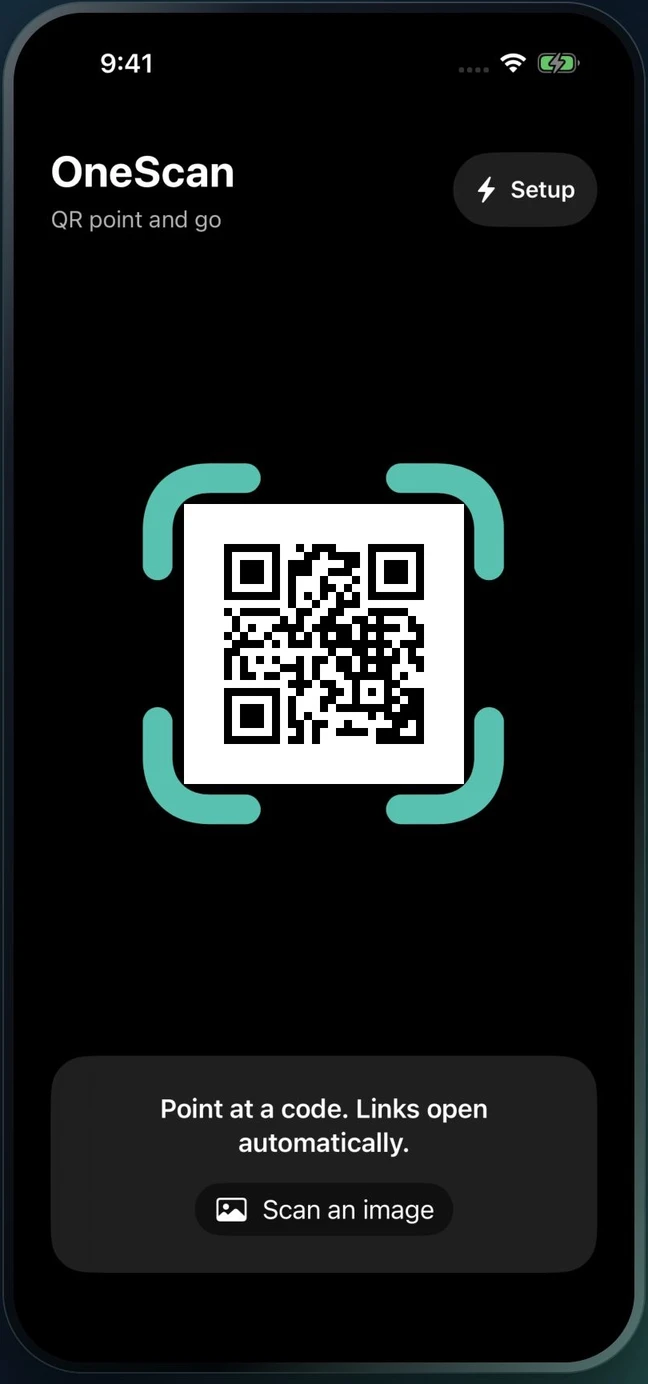
Quick launch needs initial setup. Camera permission, compatible hardware and unlocking may be required.
A little less between you and the link
Press. Point.
Get going.
OneScan opens straight to the scanner.
No home screen to work through.
- 01
Launch it.
Use the app icon, press and hold an assigned Action button or bottom Lock Screen control, or tap your Control Center control.
- 02
Point at a code.
Bring a supported QR code or barcode into the viewfinder. You can also choose Scan an image for a saved photo.
- 03
The link opens.
A brief frozen-frame highlight marks the code, then the link opens automatically. Plain text, numeric barcodes and other non-link data stay on screen.
Scan codes you trust. iOS and destination apps may ask for authentication or other steps. OneScan does not screen links for safety or look up products.
Set up once. Keep it close.
Your scanner.
Your way in.
Choose the launch that fits your iPhone. Setup is optional — opening OneScan always starts the scanner.
Activation illustration · Action button
For iPhones with an Action button
A shortcut you can feel.
Assign OneScan to the physical Action button, then press and hold to launch.
- Open Settings → Action Button on your iPhone.
- Choose Controls → Choose a Control.
- Find OneScan and select Scan a code.
- Press and hold the Action button, unlock if asked, and point at your code.
iOS 18+ and compatible Action button hardware. Alternatively, choose Shortcut and assign OneScan’s Scan a code shortcut.
Activation illustration · Bottom Lock Screen control
Keep it at the bottom of your Lock Screen
Right there. Ready to scan.
Replace a bottom Lock Screen control with OneScan’s scanner control.
- Touch and hold the Lock Screen, authenticate, then choose Customize → Lock Screen.
- Remove a bottom control, then tap + in its place.
- Search for OneScan or Scan a code, choose its QR viewfinder control, and tap Done.
- Press and hold your new control. Authenticate if asked; OneScan opens to the scanner.
iOS 18+. This is a bottom control, not a clock-area widget. It opens the regular app and cannot bypass device authentication.
Activation illustration · Control Center
Another place to keep it handy
A control, one swipe away.
Add OneScan alongside the controls you already use.
- Open Control Center on your iPhone.
- Touch and hold an empty area, then choose Add a Control.
- Search for OneScan or Scan a code and add the QR viewfinder control.
- Tap the control to launch OneScan, unlock if asked, and point at a code.
iOS 18+. If the control is missing, open OneScan once and return to the controls gallery. Camera permission is still required.
OneScan’s in-app Setup guide recommends a starting point for your iPhone model. You can choose another method at any time. System controls are assigned manually.
Small by design
Just the scan.
Keep the rest yours.
Recognition happens on your iPhone. Your camera frames, selected images and scanned code contents aren’t uploaded to our servers.
No scan history.
No account, advertising or third-party analytics SDKs. Opening a link contacts its destination, under that app or website’s policies.
Read the privacy policyMade for iPhone.
Find OneScan on the App Store, then choose the quick launch that fits your iPhone.
View on the App StoreDoes OneScan open every code automatically?
Web and supported app links open automatically. Plain text, numeric barcodes and other non-link contents are displayed. OneScan does not perform product or price lookup, and proprietary code formats may not be supported.
Can I scan without setting up a control?
Yes. Open OneScan from its app icon and allow camera access. Quick-launch controls are optional. For a saved photo or screenshot, choose Scan an image in the scanner.
Will I need to unlock my iPhone?
You may. OneScan opens as a regular app; it cannot bypass Face ID, your passcode or other device authentication. iOS and receiving apps can also ask you to confirm an action or sign in.
Why doesn’t the same code open again?
OneScan suppresses the last scanned code when you return from another app, so it does not reopen immediately. Choose Scan again to deliberately scan it again, or launch a fresh scan from an assigned control.
Does OneScan check whether a link is safe?
No. It does not provide malicious-link detection. Only scan codes you trust, and be mindful of the website or app that opens. Do not send passwords, payment codes or sensitive scanned content in a support email.
Where can I find OneScan?
Find OneScan on the App Store. It’s built for iPhone with iOS 18 or later.